Your first entity
Create an entity, define its schema, add items, and meet every field type DFC offers.
An entity without a schema is an empty folder. The schema is the interesting part: it decides what fields its items have, what each one accepts, and which of them a flow can rely on being there.
Create the entity
-
Open DFC in the CX Portal’s left navigation. You are looking at the entity tree for the instance selected at the top of the page — check it says the demo instance before you go further.
-
Create a new entity at the top level and name it
<your initials> Announcements. Give it a description that says what its items are for, not what it is called. -
Open the new entity. It has no fields yet, so it can hold no items.
Give it a schema
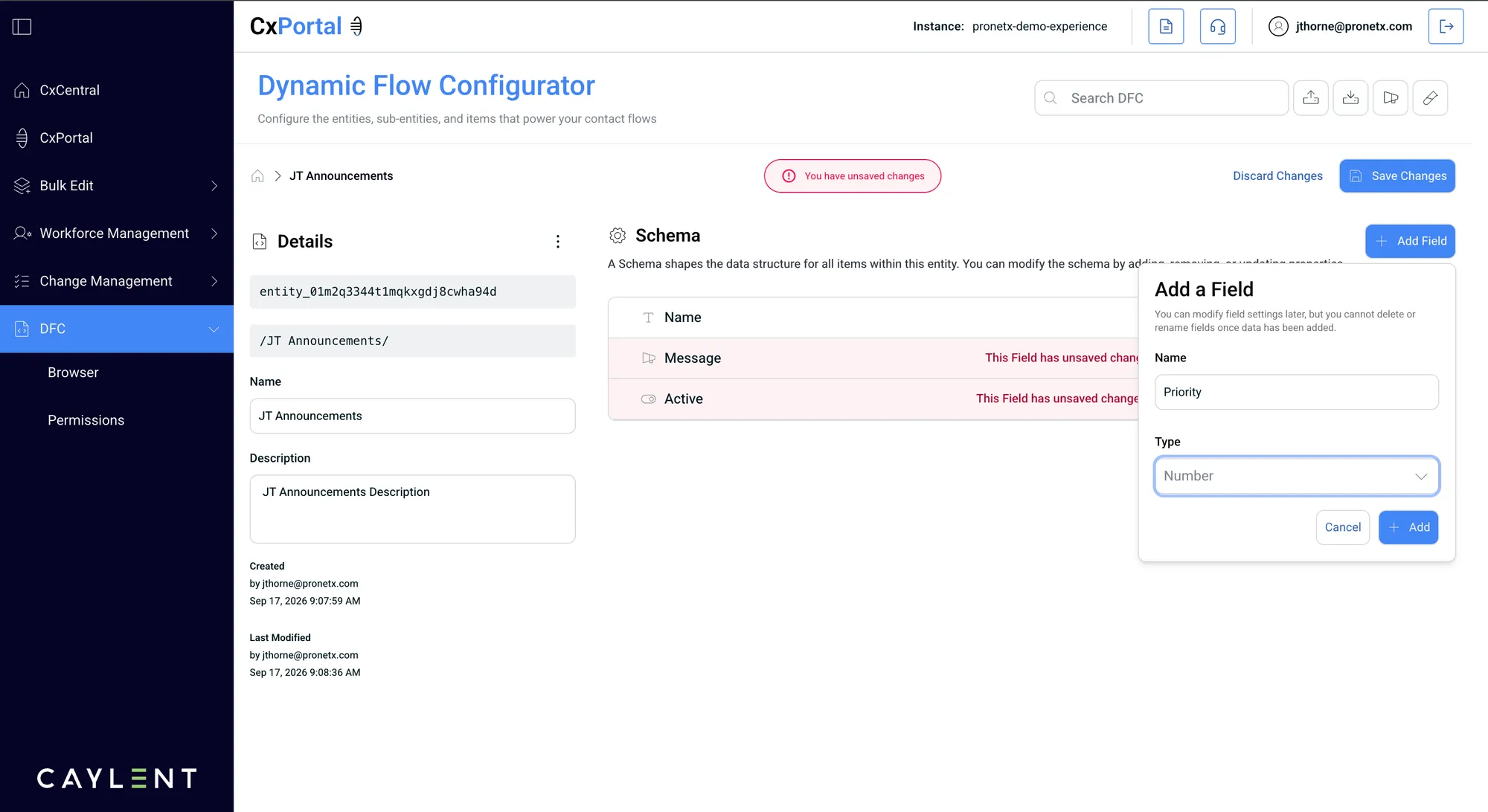
Add these four fields. The first one is special, so read the callout below before you start.
| Field | Type | Notes |
|---|---|---|
name |
String | The primary field |
message |
Prompt | What the caller hears |
active |
Boolean | Whether the announcement is playing |
priority |
Number | 1 to 10, for ordering |
Field settings can be changed afterwards, but a field cannot be deleted or renamed once items
hold data in it. The name is also exactly what a contact flow asks for, character for character,
so message and Message are different fields as far as the flow is concerned.
Every entity needs one field marked as primary, it must be required, and its type must be String. The primary field is the item’s name in the tree and the last segment of its path, so it is what a contact flow uses to ask for one item rather than all of them. An entity with two primary fields, or a primary field that is a number, will not save.
The field types
You will not use all of these on day one, but knowing what exists stops you modelling something badly.
| Type | Use it for | Shape a flow receives |
|---|---|---|
| Amazon Connect Resource | A queue, prompt, flow or phone number in the instance | An object with the resource name and arn |
| Boolean | Switches | "true" or "false" as text |
| Closure | Dated closures, one-off or recurring | A list of date ranges |
| Date Time | A single moment | The timestamp |
| Hours of Operation | A weekly opening pattern | A day-by-day structure |
| JSON | Structured data with no fixed shape | As authored |
| Number | Thresholds, counts, durations | The number |
| Pick List | A closed set of choices | The chosen value, or a list if multi-select |
| Prompt | Anything a caller hears | An object with kind and content |
| Reference | Pointing at an item in another entity | The whole target item, inlined |
| String | Names, codes, free text | The text |
| YAML | Structured data, authored as YAML | As authored |
A Prompt field carries both the words and how to say them. It arrives in the flow as an object,
so a flow reads $.External.data.message.content, not
$.External.data.message. Get this wrong and the caller hears silence where a
prompt should be.
Field settings worth knowing
Each field has more than a type. Four settings change how it behaves:
- Required — an item cannot be saved without it. Use it sparingly; a required field added to an entity that already has items makes every one of them invalid until someone edits them.
- Presentable — whether the field shows in the item list as a column. Turn it on for the handful of fields that identify an item at a glance.
- Overridable — whether a child entity is allowed to change the value it inherits. Covered on the hierarchy page.
- Conditions — show a field only when another field has a particular value. A
closureReasonfield that only appears onceclosedis ticked keeps the form honest without needing two entities.
Add two items
-
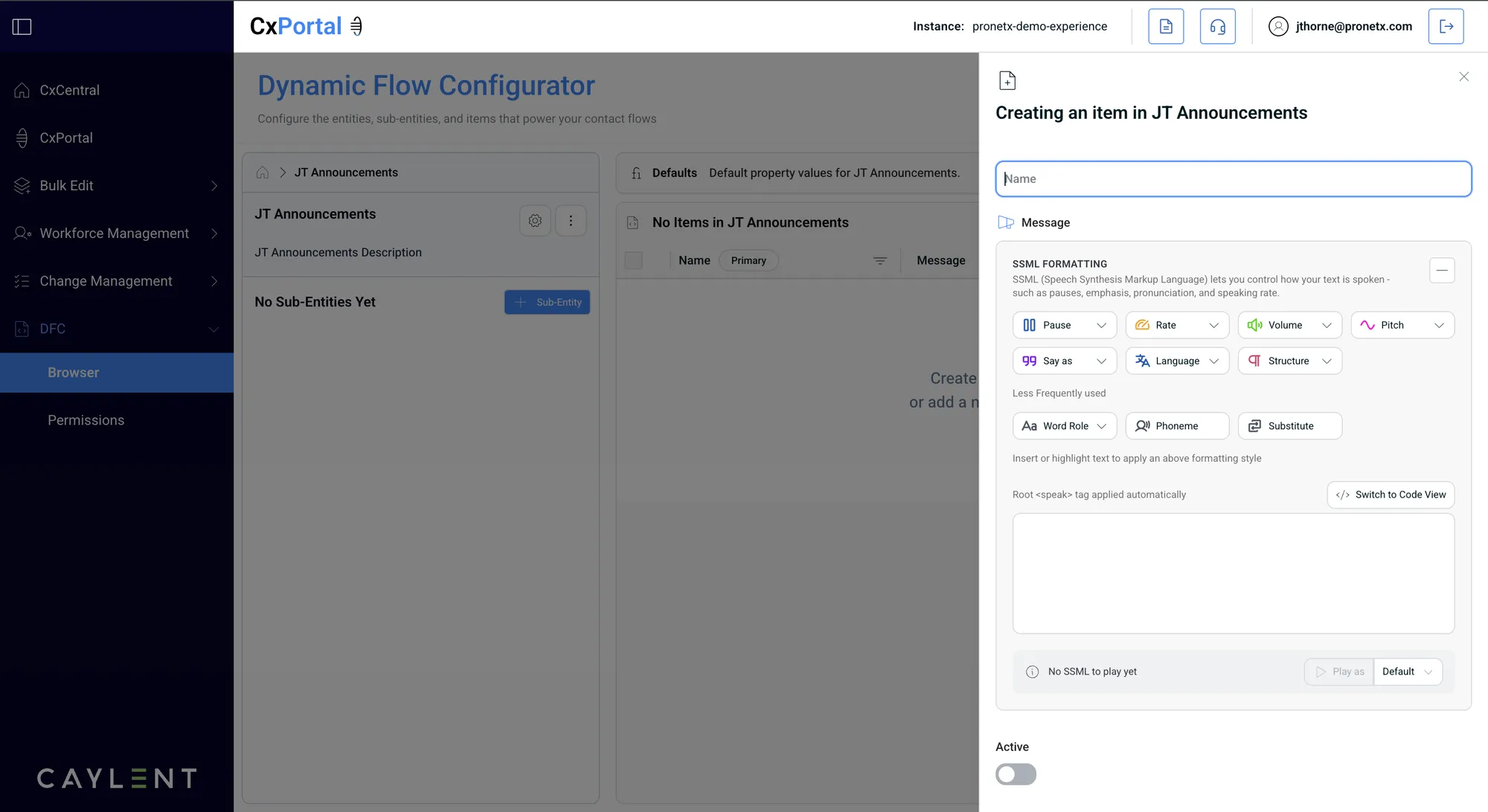
In your new entity, create an item. Set
nametoRoadworks, write a shortmessage, setactiveon andpriorityto1. -
Create a second item named
Weather, withactiveoff. -
Look at the entity’s item list. Both items are there, and the fields you marked presentable are the columns.
Your items now have paths. The path is the entity tree position plus the primary field value:
/<your initials> Announcements/Roadworks
/<your initials> Announcements/WeatherA path ending in a slash asks for the whole entity — every item in it, plus the schema. A path ending in an item’s primary field asks for one item. Flows normally want the second; a flow that needs to loop over options wants the first.
See what a flow would get
You have two items and the paths that address them. Before going anywhere near a contact flow, you can see exactly what the lookup would return for one.
-
Open the Path Tester, the test-tube icon in the DFC toolbar at the top right.
-
Enter
/<your initials> Announcements/Roadworks. -
Run it.
What comes back is the item resolved: every field, with references followed and Connect resources turned into names and ARNs. This is byte for byte what a flow receives, so anything you can see here a flow can read, and anything missing here will be missing there.
Run /<your initials> Announcements/ with the trailing slash and you get both items plus the
schema, rather than one item. Worth seeing once, so the difference between the two shapes is
concrete rather than theoretical.
Editing an item takes effect immediately
There is no draft state and no publish step. When you save an item, the next contact that asks for that path gets the new value. That is the feature — it is also the thing to respect, because there is no staging gate between you and live callers.
Editing an item’s value is routine. Editing the entity’s schema changes the contract every flow reading that entity depends on. Renaming a field does not rename the reads inside a contact flow, so the flow starts receiving nothing and takes whichever branch nothing leads to. Treat a schema change as a code change, and search your flows for the field name first.