Build a simple flow
Create a contact flow from scratch that reads the entity you just made and plays a field from it back to the caller.
Four blocks is enough to prove the pattern. This flow looks up the entity you created in the last section and reads one of its fields aloud.
Building a flow means the Amazon Connect console, which is separate from the CX Portal. If you do not have it, you can raise a case, or read this page and pick the workshop back up at the next one.
Create the flow
-
In Connect, go to Routing, then Flows, then Create flow.
-
Name it something you will recognise later, with your initials in it.
Add the four blocks
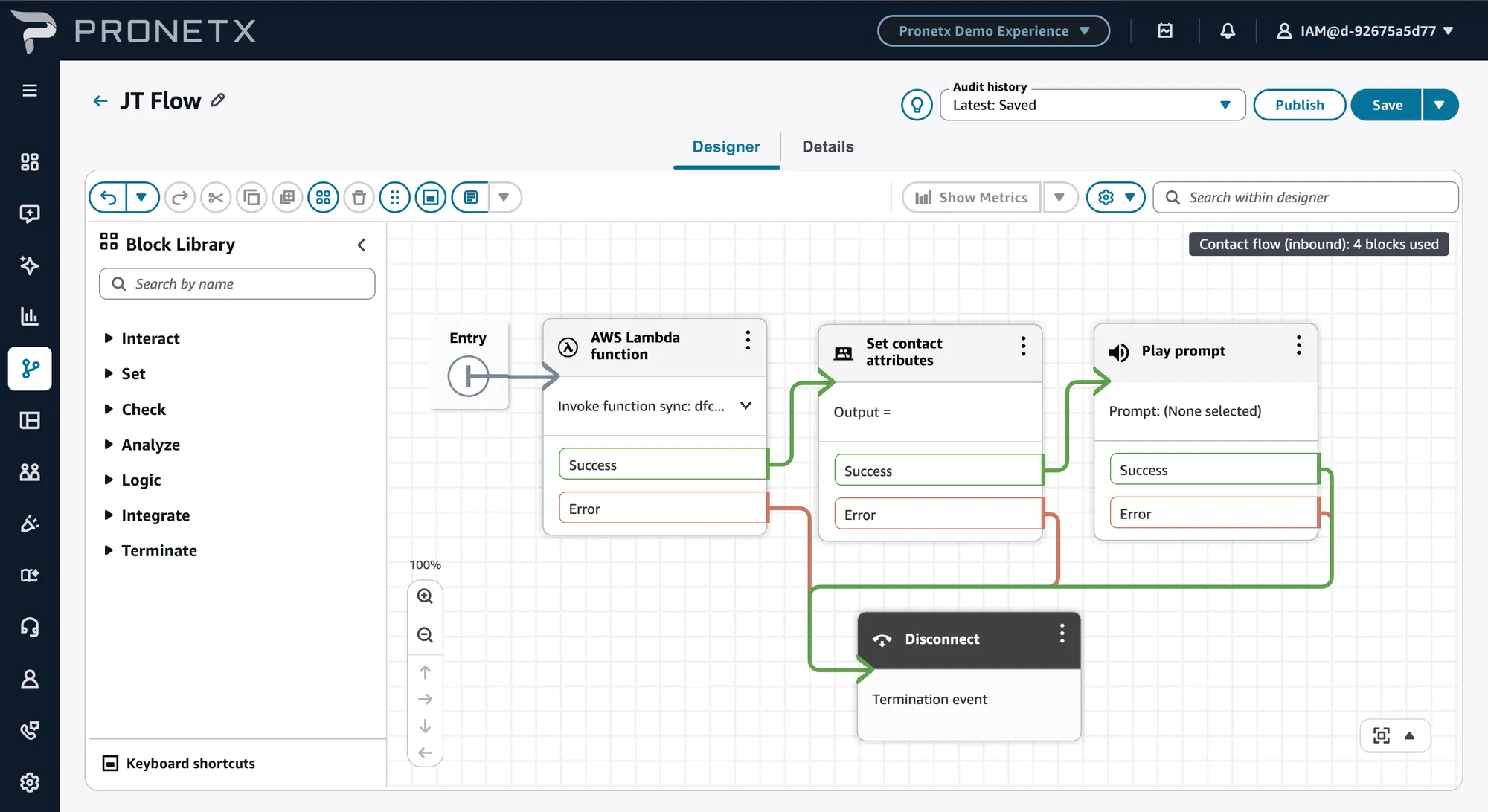
Drag these four onto the canvas from the block library.
| Block | What it is for |
|---|---|
| AWS Lambda function | Asks DFC for your item |
| Set contact attributes | Keeps one field out of the answer |
| Play prompt | Reads it to the caller |
| Disconnect | Ends the call |
Then join them. Most blocks have a Success and an Error output, and both have to go somewhere or the flow will not publish:
| From | Output | To |
|---|---|---|
| Entry | AWS Lambda function | |
| AWS Lambda function | Success | Set contact attributes |
| AWS Lambda function | Error | Disconnect |
| Set contact attributes | Success | Play prompt |
| Set contact attributes | Error | Disconnect |
| Play prompt | Success and Error | Disconnect |
Sending every error to Disconnect is the blunt version. The demo flow says something useful on each error branch instead, which is worth copying once this one works.
AWS Lambda function
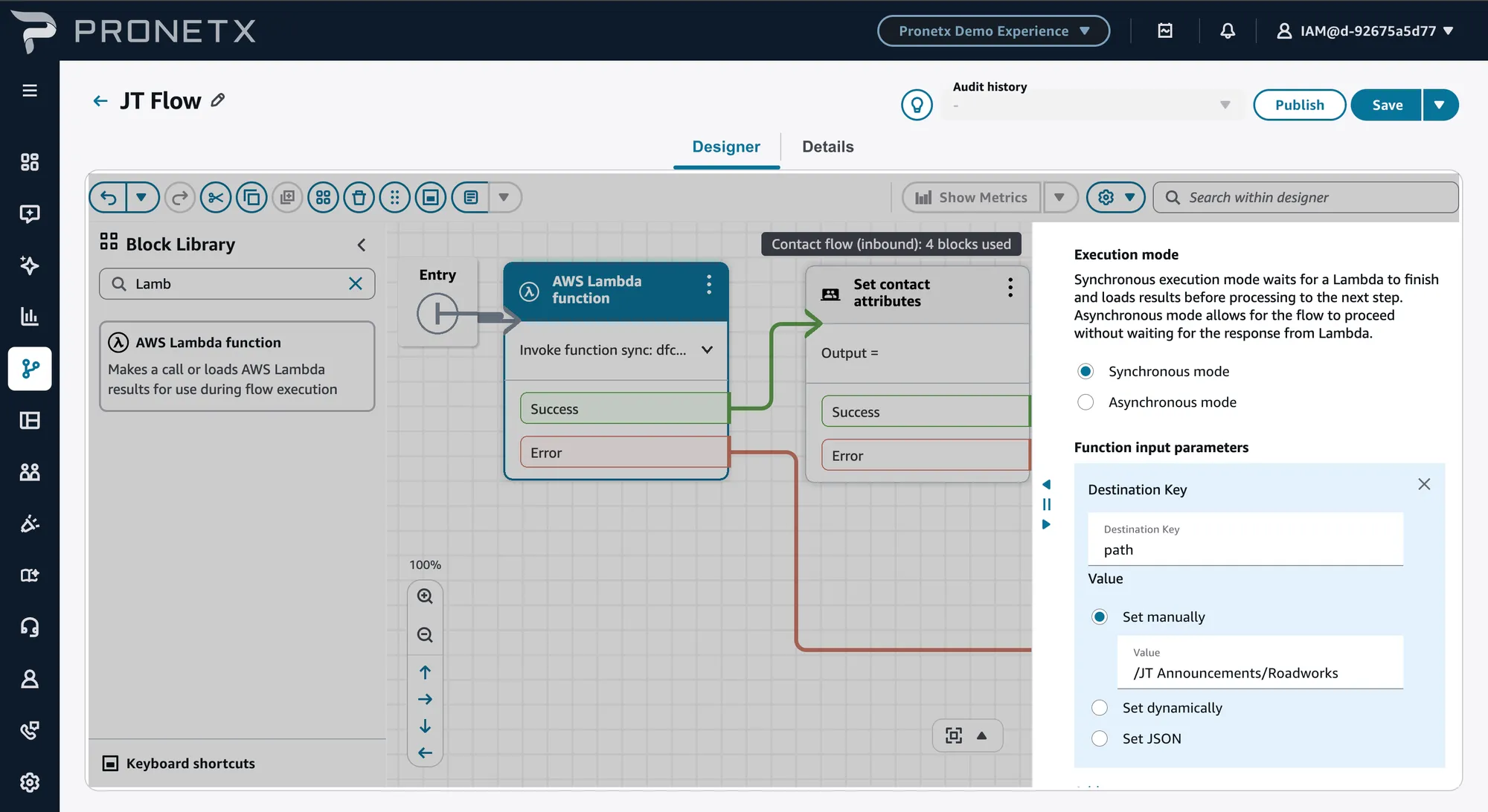
It is in the Integrate group of the block library, or type lambda into the search box.
Invoke module calls another flow module, not a Lambda. The demo uses both: its inbound flow invokes two modules, and those modules call the DFC function. If the function dropdown here is empty, that is the Lambda not being associated with the Connect instance rather than the wrong block.
This is the only block with any real configuration.
| Setting | Value |
|---|---|
| Invoke function | dfc-query-by-path-prod, the DFC lookup for this instance |
| Execution mode | Synchronous. Asynchronous does not wait for the answer, so there would be nothing to read |
| Timeout | Anything up to 8, which is the maximum |
| Response validation | JSON |
Then add one function input parameter:
Key:   path
Value: /<your initials> Announcements/Roadworks
That is the same path you saw in the entity browser. The function takes a path and returns the item at it.
Paths are matched exactly. The function splits on the last slash, looks the entity up by the
part before it, and matches the item by the part after, so /JT Announcements/Roadworks finds
the entity stored as /JT Announcements/ while JT Announcements/Roadworks finds nothing. It
fails quietly, for the reason in the tip at the end of this page.
Set contact attributes
Take one field out of the response and give it a name the next block can use.
Destination key: announcement
Value (from):    $.External.data.message.content
$.External is where the Lambda’s answer lands. data is the item, and everything after that is
the field you want.
The message field is a Prompt, so it arrives as an object and the text is in .content.
Pointing at $.External.data.message gets you the object, which plays as nothing. This is the
single easiest mistake to make on this page.
Play prompt
Set it to Text to speech, and use the attribute:
$.Attributes.announcementDisconnect
No configuration.
Publish and try it
-
Save and then Publish. Publishing is what makes it callable.
-
Test it without a phone number: open the flow and use Test chat. The flow will send your announcement text as a chat message.
You have just built the whole pattern. A flow with no business knowledge in it, one lookup, and a caller-facing behaviour that comes entirely from configuration.
Change the path to something that does not exist and run it again. You will get silence rather
than an error, because the function answers “not found” inside a successful response. That is why
the demo flow checks for an error code of its own rather than relying on the block’s error
branch.